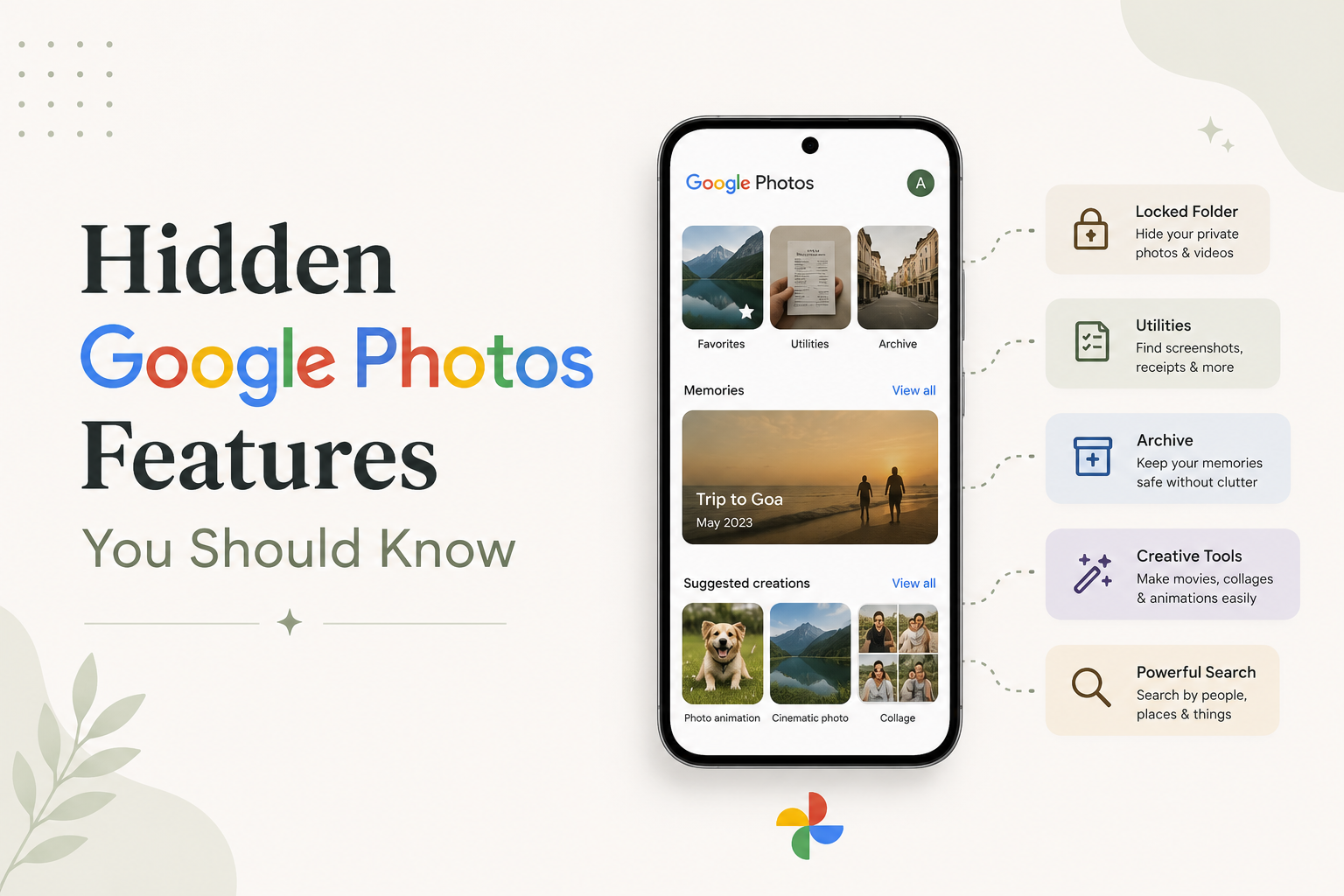
20 Hidden Google Photos Features You Should Know
Google Photos is more than a place to back up pictures and videos. While many people use it mainly to save photos, the app includes several useful tools that can make managing a large photo library much easier.
You can search for old pictures without scrolling through thousands of files, keep private photos in a Locked Folder, copy text from images, edit photos, create albums, and share memories with family and friends.
In addition, Google Photos includes features that can help you manage storage and find photos based on people, places, objects, and other details.
Some of these tools work automatically, while others need to be turned on or used manually. Also, features may differ depending on your device, country, Google Account, app version, or subscription.
In this guide, you will discover 20 hidden Google Photos features and useful tricks that can help you organize, find, edit, protect, and share your photos more easily.
1. Keep Private Photos in Locked Folder
Not every photo needs to appear in your main photo library.
Google Photos includes a feature called Locked Folder that gives you a separate place for private photos and videos.
Items stored there are kept away from several areas of the regular Google Photos experience. For example, they do not normally appear in your main photo grid, Memories, albums, or search results.
Access to Locked Folder is protected using available security methods, such as your device screen lock.
When Is Locked Folder Useful?
You might use Locked Folder for:
Personal photos
Sensitive screenshots
Private documents
Identification-related images
Other content you want to keep separate
Depending on your settings, you may also have the option to back up content stored in Locked Folder.
Before moving important files, check whether backup is enabled and understand how the feature works on your device.
Locked Folder adds privacy within Google Photos, but you should still protect your phone and Google Account with strong security settings.
2. Find Old Photos With Smart Search
Finding one picture in a library containing thousands of images can be difficult.
Fortunately, Google Photos includes powerful search tools that can help.
Instead of remembering the exact date when you took a photo, try searching for something visible in the image.
For example, you might search for:
beach
mountains
birthday
dog
car
food
wedding
Depending on your library and available features, Google Photos may show images related to your search.
This can save a lot of time when you are trying to find an old memory.
Search results may not always be perfect. However, using simple words that describe the image can often help you narrow down your photo library quickly.
3. Search Photos Without Adding Tags
Many traditional photo apps rely on folders and manually added tags.
Google Photos can make the process simpler.
Its search tools can help identify visual details and other information connected to your photos.
Suppose you remember taking a photo of a birthday cake three years ago, but you cannot remember the month.
Instead of scrolling through several years of pictures, search for:
cake
Looking for pictures from a hiking trip? Try:
mountains
Want to find sunset photos? Search:
sunset
You can still create albums for important collections. However, smart search gives you another way to find photos when you cannot remember where or when you saved them.
4. Find and Copy Text From Photos
Have you ever taken a picture of a document because you wanted to save the information for later?
Google Lens can make those photos more useful.
When supported text is detected in an image, you may be able to select and copy it instead of typing everything manually.
This can work with photos containing:
Documents
Receipts
Business cards
Posters
Signs
Notes
Screenshots
For example, imagine that you photographed a business card. Rather than manually entering the address or phone number, you may be able to select and copy the detected text.
You can also use Google Lens for other text-related tasks, such as searching or translating supported content.
Text detection is not always perfect, though. Check important names, addresses, phone numbers, and financial details before using copied information.
5. Remove Unwanted Objects With Magic Eraser
Sometimes a great photo contains one distracting object.
Perhaps someone walked behind you just as you took the picture. Maybe there is a sign, wire, or piece of clutter that takes attention away from your subject.
Magic Eraser is an editing feature that can help remove certain unwanted elements from photos.
When the feature is available, open your photo and look through the editing options for Magic Eraser.
The tool may suggest objects that could be removed. You may also be able to select an unwanted area yourself.
Does Magic Eraser Always Work Perfectly?
Results can vary depending on the image.
Removing a small object against a simple background may produce a clean result. In contrast, removing a large object from a detailed scene may be more difficult.
Always zoom in and check your edited photo before saving the final version.
AI-powered editing can be helpful, but some complex photos may still require more advanced editing tools.
6. Add Movement With Cinematic Photos
Google Photos can create a sense of movement and depth from certain still images.
This feature is known as Cinematic photos.
The effect can make a normal picture feel more dynamic by adding subtle movement.
Portraits and photos with a clear subject may work particularly well.
Depending on your Google Photos version and account, cinematic content may appear automatically or through available creation features.
Because Google regularly updates the app, the exact location of these options may change.
Cinematic photos can be a fun way to give older pictures a fresh look without manually creating animations.
7. Rediscover Old Pictures With Memories
Most of us take far more photos than we regularly view.
After a few years, thousands of pictures can sit quietly in our photo libraries.
The Memories feature helps bring some of those moments back.
Google Photos may create collections based on older dates, trips, people, events, or other themes.
As a result, you might open the app and see photos from a holiday you took several years ago.
Customize What Appears in Memories
Not every memory is something you want to see again.
For this reason, Google Photos provides settings that can help you control what appears.
Depending on the options available to you, it may be possible to hide certain people, pets, or dates from Memories.
Changing these settings can make the feature more personal and better suited to your preferences.
8. Organize Important Pictures With Albums
Even with powerful search, albums are still useful.
You can create albums to keep important photos together.
For example, consider creating albums for:
Family
Travel
Weddings
Birthdays
Pets
Work projects
School events
Albums make it easier to return to a specific collection without searching again.
They are also useful when sharing multiple photos.
After a family holiday, for example, you could create one album with your favorite pictures and share the collection with relatives.
Adding an image to an album does not normally create a second full copy of that image. Instead, the album helps organize content already in your library.
9. Share Multiple Photos With a Link
Sending dozens of photos individually can take time.
Google Photos offers sharing options that make it easier to send a collection of pictures.
You can select several photos or create an album, then use the available sharing features.
Depending on your settings, you may be able to create a link that gives others access to the shared content.
This approach can be useful for:
Wedding pictures
Travel photos
Birthday parties
Family events
Group trips
School events
Be careful when sharing private content.
Anyone who gains access to an active shared link may be able to view the associated photos, depending on your sharing settings.
Review access regularly and stop sharing content when necessary.
10. Automatically Share Photos With Partner Sharing
If you regularly share photos with someone you trust, Partner Sharing can save time.
The feature allows you to automatically share certain photos with another person based on the options you select.
For example, families may use it to make selected photos available to a partner without manually sending each new picture.
Available sharing options can vary, so review the setup carefully.
Check Your Sharing Settings
Automatic sharing is convenient, but it also requires attention.
Make sure you understand which photos are included before enabling the feature.
It is also a good idea to review Partner Sharing settings occasionally.
If you no longer want to share content automatically, change or disable the feature.
11. Explore Your Photos With Google Lens
Google Lens turns a photo into more than something you simply look at.
It can analyze visual information and help you learn more about objects and text shown in an image.
Depending on the content, Google Lens may help you:
Copy text
Translate text
Identify objects
Explore landmarks
Find similar products
Recognize plants or animals
Open detected links
Read QR codes
Imagine that you took a picture of a sign while traveling abroad. Google Lens may help translate the visible text.
Similarly, you could use a photo of an unfamiliar product to search for visually related items online.
Keep in mind that visual identification can make mistakes. Avoid relying on it as your only source when accurate identification is important.
12. Improve Photos With Editing Suggestions
You do not need professional photo editing experience to make simple adjustments.
Google Photos includes editing tools and may provide automatic suggestions for certain images.
Available options can vary, but suggestions may help with areas such as lighting, color, portrait effects, or other visual improvements.
The process is usually straightforward.
Open an image, explore the available editing options, and preview the suggested change.
You can then compare the edited version with the original.
Automatic edits will not improve every photo. Therefore, use them as a convenient starting point rather than assuming every suggestion will look better.
13. Access Backed-Up Photos on Other Devices
Backing up your photo library can make your pictures available across supported devices.
For example, you might take a picture on your Android phone and later view the backed-up image through Google Photos on your computer.
This makes it easier to access your photo library without manually transferring every file.
However, make sure your photos have actually finished backing up before removing local copies.
A photo that exists only on your phone could be lost if you delete it before a successful backup.
Also, remember that backed-up content may count toward your Google Account storage under Google’s current storage rules.
14. Recover Deleted Photos From Trash
Accidentally deleted the wrong photo?
Check Google Photos Trash.
Eligible deleted items remain in Trash for a limited time before they are permanently removed.
According to Google’s current policies, backed-up photos and videos generally remain in Trash for up to 60 days. Items that were not backed up may be kept for a shorter period.
During that time, you may be able to select an eligible photo and restore it.
Once an item has been permanently deleted or the recovery period has expired, normal restoration may no longer be available.
Therefore, if you delete something important by mistake, check Trash as soon as possible.
15. Free Up Storage on Your Phone
If photos and videos are filling your phone’s internal storage, Google Photos has a useful cleanup option.
The Free up space on this device feature can remove eligible local copies after they have been successfully backed up.
This can recover physical storage on your phone while keeping the backed-up versions available through Google Photos.
Before using the feature, confirm that your important photos and videos have completed their backup.
Phone Storage and Google Storage Are Different
This is an important distinction.
Using Free up space on this device can recover storage on your phone.
However, it does not reduce the cloud storage used by the backed-up photos in your Google Account.
If your Google Account storage is full, you need to manage content stored across services such as Google Photos, Gmail, and Google Drive.
16. Create Collages and Highlight Videos
Your photo library does not have to remain a collection of separate pictures.
Google Photos includes creation tools that may help turn selected photos and videos into new content.
Depending on what is available on your device, options may include:
Collages
Highlight videos
Animations
Cinematic photos
These features can be useful after a vacation, birthday, wedding, or family event.
Instead of sharing dozens of separate images, you can create a smaller visual collection.
Google Photos may also offer automatic creations or suggestions.
Since the app changes over time, check the current creation options available in your version.
17. Explore Travel Memories on a Map
Trying to remember where you took a particular photo?
Location-based browsing can help.
When suitable location information is available, Google Photos can display photos according to where they were taken.
This creates a visual way to explore past trips.
Instead of searching by year or month, you can browse a location and rediscover pictures connected to that place.
The feature is especially useful for frequent travelers with large photo libraries.
Keep in mind that not every photo contains accurate location information. Results depend on the data available for each image and your location settings.
18. Hide People, Pets, or Dates From Memories
Automatic Memories can sometimes bring up content you would rather not see.
Fortunately, Google Photos offers controls that can help customize your experience.
Depending on the settings available, you may be able to hide specific people, pets, or dates from appearing in Memories.
This can be useful when you want to keep photos in your library but do not want them to appear unexpectedly.
Hiding something from Memories is different from deleting the original image.
Your photos can remain stored in your library while appearing less often in automatic memory collections.
19. Digitize Old Printed Photos With PhotoScan
Not every important memory started as a digital photo.
Many families still have albums filled with printed photographs from years or even decades ago.
Google’s PhotoScan app can help you create digital copies of printed pictures using your phone.
The app uses a guided scanning process designed to capture the photograph and reduce problems such as glare.
After creating a digital copy, you can organize and back up the resulting image using your preferred storage system.
However, avoid throwing away valuable original photographs simply because you scanned them.
For important family memories, keeping the physical original and maintaining more than one digital backup can provide better long-term protection.
20. Manage Google Photos Storage More Efficiently
As your photo collection grows, storage management becomes increasingly important.
Google provides tools that can help you review your storage usage and identify content that may be worth cleaning up.
Start With Large Videos
Large videos are often a good place to begin.
A few long, high-resolution recordings can consume much more space than hundreds of ordinary photos.
Review videos you no longer need, such as accidental recordings, old screen recordings, or duplicate exports.
Review Screenshots and Unwanted Media
Screenshots can also build up over time.
You may have saved temporary information, shopping pages, social media posts, or other content that is no longer useful.
Removing unnecessary files can make your library easier to manage.
Check Gmail and Google Drive Too
Google Photos is not the only service using your Google Account storage.
Your available storage is also shared with services such as Gmail and Google Drive.
Therefore, if your account is nearly full, check your overall storage usage before deleting important photos.
Large email attachments or Drive files may be using more space than you realize.
Bonus Tip: Create a Simple Google Photos Routine
You do not need to organize your entire photo library in one day.
A simple routine can make a big difference.
Once a month, review unwanted screenshots and accidental recordings. Check large videos occasionally and remove files you genuinely do not need.
Next, organize your most important memories into albums.
Make sure backup is working correctly, especially before changing phones or removing local files.
Finally, review your Google Account storage from time to time.
These small habits can help prevent your photo library from becoming difficult to manage.
Final Thoughts: Try These Hidden Google Photos Features
Google Photos can do much more than simply back up pictures and videos.
Smart search can help you find old photos without endless scrolling. Locked Folder gives you a separate place for private content, while Google Lens can help you copy text, translate words, and explore objects shown in your pictures.
You can also create albums, share photo collections, rediscover old moments through Memories, and explore travel photos using location-based features.
If your phone is running low on space, the Free up space on this device feature can help remove eligible local copies that are already backed up. Meanwhile, Google Account storage tools can help you understand what is using your available cloud space.
You do not need to use every feature at once. Start with one or two tools that solve a problem you already have.
Once you become familiar with these hidden Google Photos features, finding, organizing, editing, sharing, and managing your favorite memories can become much easier.
Frequently Asked Questions About Hidden Google Photos Features
Discover useful Google Photos features that can help you search, organize, edit, share, back up, and manage your photos and videos more efficiently.
What are some hidden Google Photos features?
Google Photos includes more than basic photo backup and storage. Depending on your device, region, account, and app version, you may have access to useful features for searching photos, organizing memories, editing images, sharing albums, managing storage, and finding older content.
Exploring the Search, Collections, Memories, Edit, Sharing, and account settings areas can help you discover tools you may not use regularly.
How can I search for specific photos in Google Photos?
Google Photos provides search capabilities that can make it easier to find photos without manually scrolling through your entire library. Depending on the content and available features, you may be able to search using descriptive terms related to people, places, objects, dates, or other details.
Try using relevant keywords when looking for an older photo. Search results depend on how Google Photos recognizes and organizes the content in your library.
Can Google Photos help me find old photos faster?
Yes. Instead of manually scrolling through years of photos, you can use Google Photos search and date-based navigation to locate older content more quickly.
Using specific search terms or navigating to an approximate date can be particularly helpful when your Google Photos library contains thousands of images and videos.
Can Google Photos recognize people and pets?
Google Photos offers face grouping features in supported locations and accounts. When available and enabled, similar faces may be grouped together, which can make it easier to find photos of particular people or pets.
Availability can vary, and users should review their Google Photos settings to understand and manage face grouping options associated with their account.
What are Memories in Google Photos?
Google Photos Memories can surface selected photos and videos from your library, helping you revisit moments from the past. Memories may organize content around dates, trips, people, events, or other themes.
The exact experience and available controls can change over time, so check your current Google Photos settings for options related to Memories and featured content.
Can I hide certain people or dates from Google Photos Memories?
Google Photos provides controls for managing what appears in Memories. Depending on the current version and settings available to your account, you may be able to reduce or hide memories involving particular people or specific dates.
These controls can be useful when you prefer not to have certain personal events or periods automatically resurfaced.
Does Google Photos have built-in photo editing tools?
Yes. Google Photos editing tools can provide options for improving and adjusting photos directly within the app. Available features may include basic adjustments, cropping, rotation, filters, and other editing capabilities.
Some advanced editing tools may depend on your device, subscription, location, or current Google Photos version. Check the Edit section for the options currently available to you.
Can I edit a photo without losing the original?
Google Photos editing workflows may allow you to save changes while retaining options related to the original image or saving a separate copy, depending on the type of edit and device you are using.
Before making significant edits to an important photo, review the available save options so you understand whether the changes can be reverted or whether you should create a copy.
Can I create albums in Google Photos?
Yes. Albums can help you organize related photos and videos into collections. For example, you can create albums for vacations, family events, birthdays, weddings, projects, or other categories that are important to you.
Albums are particularly useful when you want quick access to a specific group of photos without moving or duplicating every file manually.
Can I share a Google Photos album with other people?
Google Photos includes sharing features that allow users to share supported photos, videos, and albums with other people. Shared albums can be useful for vacations, celebrations, family events, and collaborative photo collections.
Before sharing personal content, review the album's sharing settings and understand who can access or contribute to it.
What is Partner Sharing in Google Photos?
Partner Sharing is a Google Photos feature designed to make it easier to share selected photos with a chosen partner account. The available options can help control which photos are included in the sharing arrangement.
Because this feature involves automatically sharing personal photos, review all available settings carefully before enabling it.
How can I free up phone storage using Google Photos?
Google Photos provides a device storage cleanup option that can help remove eligible local copies of photos and videos that have already been backed up. This can recover storage space on your smartphone or tablet.
Does freeing up device space delete photos from Google Photos?
The dedicated device space cleanup feature is intended to remove eligible local copies after they have been backed up, while the backed-up versions remain accessible through Google Photos.
This is different from manually deleting an item from your Google Photos library. Always check which action you are performing before removing important photos or videos.
Can Google Photos automatically back up my photos?
Google Photos can back up eligible photos and videos from supported devices when backup is enabled and properly configured. This can make your backed-up library available through your Google Account on compatible devices.
Backup behavior depends on your settings, internet connection, available account storage, and selected folders. Review your backup status periodically to make sure important content has uploaded successfully.
Can I choose which device folders Google Photos backs up?
On supported devices, Google Photos may provide controls for choosing additional device folders to back up. This can help you decide whether content from certain apps or folders should be included in your cloud backup.
Reviewing these settings can also prevent unnecessary media from being backed up if you do not want it stored in your Google Photos library.
How can I manage storage in Google Photos?
Google Photos includes storage management options that can help you review content that may be using your Google Account storage. Depending on the available categories, you may be able to identify large photos and videos or other content worth reviewing.
Remember that Google Account storage can be shared across services such as Google Photos, Google Drive, and Gmail, so managing all three services may be necessary when your account is running low on space.
Can I recover deleted photos from Google Photos?
Deleted photos and videos may remain in Trash for a limited period before permanent deletion, depending on their backup status and Google's current retention rules. If an item is still available in Trash, you may be able to restore it.
Once an item has been permanently deleted and is no longer recoverable through Trash, restoration may not be possible. Check Trash as soon as possible if you accidentally delete an important photo or video.
Are all Google Photos features available to everyone?
Not necessarily. Some Google Photos features may vary based on your device, operating system, region, account type, subscription, app version, or gradual feature rollout.
If you cannot find a feature mentioned in a tutorial, update the Google Photos app where appropriate and check Google's current documentation and your account settings.
What are the best Google Photos features to try first?
The most useful features depend on how you use your photo library, but a good starting point is to explore:
- Search for finding older photos quickly
- Albums for organizing important collections
- Memories for rediscovering past moments
- Built-in photo editing tools
- Shared albums for sharing collections
- Backup settings for protecting important media
- Storage management for reviewing space usage
- Device space cleanup for freeing local storage
Taking a few minutes to explore these tools can help you get more value from Google Photos beyond simply storing pictures.