Ghibli-Style Image Generation Fully Local: A Beginner’s Guide to Private AI Image Conversion
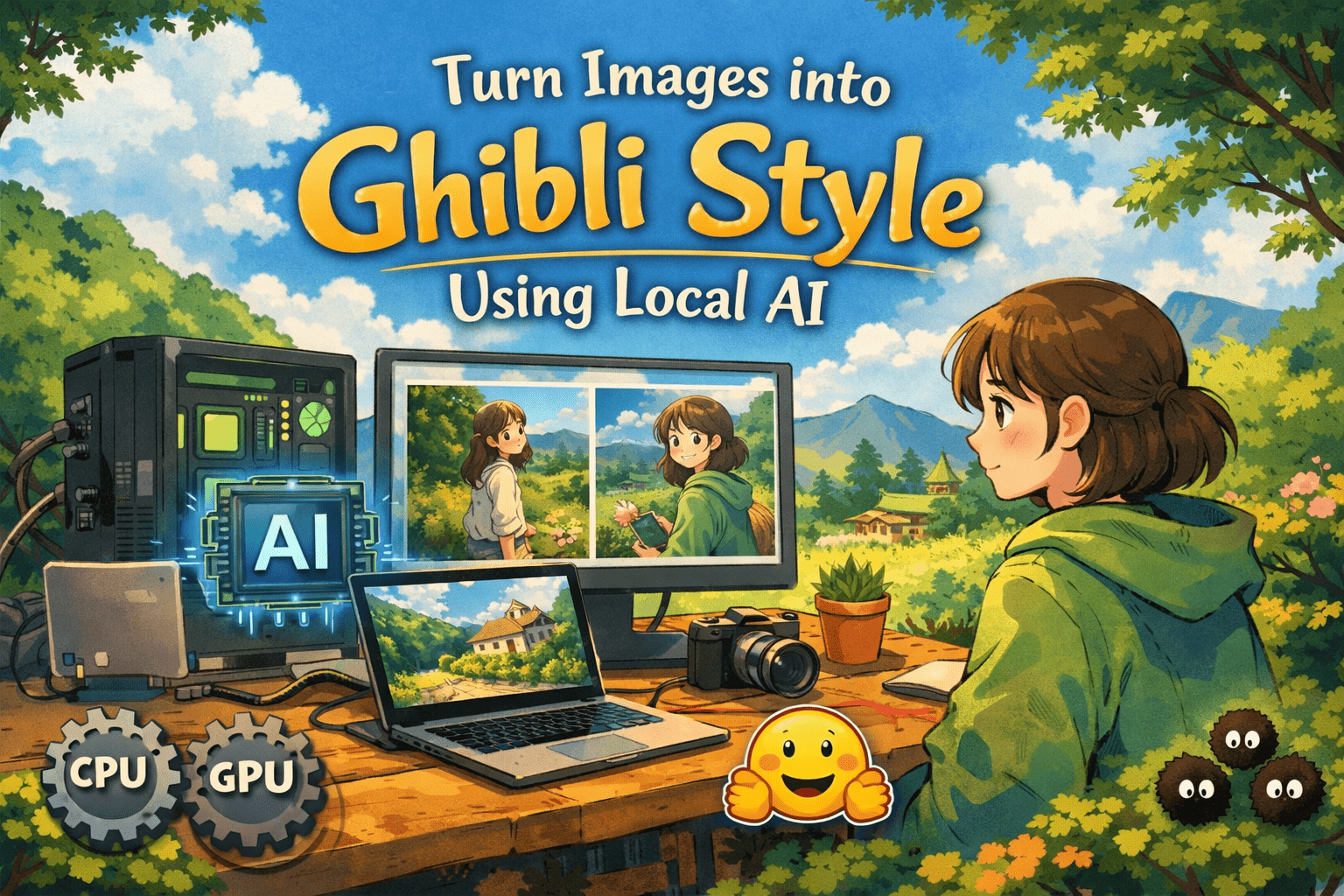
AI image generation makes it possible to transform ordinary photographs and illustrations into soft, hand-painted anime-inspired artwork. If you enjoy whimsical animation aesthetics with warm colors, painterly scenery, gentle lighting, and expressive characters, you can build a similar visual workflow without relying entirely on online image generators.
The biggest advantage is privacy.
By running an open-source image generation model locally, your source images can remain on your own computer. Once the required software and model files have been downloaded, many workflows can also operate without an active internet connection.
This guide explains how to set up Ghibli-style image generation locally, with a particular focus on a CPU-only setup. You will learn how Stable Diffusion image-to-image generation works, how LoRA adapters can influence the visual style, what hardware you need, and how to build your own Gradio-based application.
The goal is not to reproduce frames or characters from existing films. Instead, the workflow focuses on creating an original, whimsical, hand-painted animation aesthetic influenced by broad visual qualities such as watercolor-like backgrounds, warm natural colors, atmospheric scenery, and expressive illustrated characters.
What Does “Ghibli-Style” Mean in AI Image Generation?
People often use the phrase “Ghibli-style” as shorthand for a recognizable family of visual characteristics associated with hand-painted Japanese animation.
These characteristics can include:
- Soft, painterly textures
- Warm and natural color palettes
- Gentle sunlight and atmospheric skies
- Expressive illustrated characters
- Detailed natural environments
- Whimsical architecture
- Peaceful countryside scenery
- Nostalgic moods
- Hand-drawn animation aesthetics
AI image models do not need to reproduce a specific existing artwork for you to create images with these general qualities.
A good approach is to describe the visual characteristics you actually want.
For example, instead of relying entirely on a studio name, you might prompt for:
“whimsical hand-painted anime illustration, soft watercolor background, warm afternoon sunlight, lush countryside, expressive character, detailed clouds, nostalgic atmosphere”
This gives the model clearer information about the desired result while encouraging original output.
Why Run AI Image Generation Locally?
Online AI image generators are convenient, but local image generation gives you greater control over the entire workflow.
The first advantage is privacy. With a genuinely local setup, the image can be processed directly on your computer instead of being intentionally uploaded to an external image-generation service.
You also gain more control over models and generation parameters.
Depending on the software and model, you can adjust settings such as:
- Prompt
- Negative prompt
- Image dimensions
- Denoising strength
- Guidance scale
- Number of inference steps
- Random seed
- LoRA adapter weight
Once your environment and model files are available locally, the core inference process can generally run offline.
Keep in mind that initial installation usually requires internet access to download Python packages, model weights, and other dependencies.
What You Need for a CPU-Only Setup
You do not necessarily need an NVIDIA GPU to experiment with Stable Diffusion.
A CPU-only computer can run compatible models, although generation will usually be considerably slower than GPU inference.
A practical setup may include:
- A modern 64-bit processor
- At least 16 GB of system RAM for a comfortable experience
- Sufficient SSD storage for models and Python dependencies
- Python
- Git, depending on the installation method
- A compatible Stable Diffusion model
- A local user interface or custom application
CPU performance varies significantly by processor, model, image dimensions, inference steps, and software optimization.
For CPU experiments, starting with a 512 × 512 image and a relatively small number of inference steps is usually more practical than immediately attempting high-resolution generation.
Stable Diffusion Models and LoRA Adapters
Two terms appear frequently when building this type of workflow: base models and LoRA adapters.
Base Models
The base model performs the core image generation.
Depending on your workflow, you might use a Stable Diffusion-compatible checkpoint that supports image-to-image generation.
The model determines many fundamental characteristics of the output and has a significant effect on performance and memory requirements.
For CPU-only generation, smaller or older model architectures may be more practical than large modern diffusion models.
Always review a model’s license and usage conditions before downloading or distributing it.
LoRA Adapters
LoRA stands for Low-Rank Adaptation.
In image-generation workflows, a LoRA adapter can modify certain characteristics of a compatible base model without replacing the entire checkpoint.
Style-oriented LoRAs may influence:
- Color treatment
- Line work
- Lighting
- Character rendering
- Background appearance
- Illustration aesthetics
The LoRA must be compatible with the architecture of your chosen base model.
For example, an adapter trained for one Stable Diffusion architecture should not automatically be assumed to work with every other model.
How Image-to-Image Conversion Works
Image-to-image, commonly called img2img, starts with an existing image rather than generating everything from random noise.
You provide:
- A source image
- A text prompt
- An optional negative prompt
- Generation parameters
The model then creates a new interpretation influenced by both the original image and your instructions.
One of the most important controls is denoising strength, sometimes represented internally as strength.
A lower strength generally preserves more of the source image.
A higher strength gives the model greater freedom to reinterpret the composition and details.
For stylization, you might experiment with values around 0.3 to 0.7, although the ideal setting depends heavily on the model and source image.
Start conservatively and increase the value gradually.
Prompting for a Soft Hand-Painted Anime Aesthetic
Good prompting can make a major difference.
Instead of creating an extremely long list of unrelated keywords, describe the scene and visual qualities clearly.
For example:
“whimsical hand-painted anime illustration, soft watercolor textures, warm natural lighting, expressive character, lush green landscape, detailed clouds, peaceful nostalgic atmosphere”
You can also add scene-specific information.
For a portrait:
“illustrated portrait of a young traveler standing near a countryside train station, hand-painted anime aesthetic, soft natural colors, warm sunset lighting, detailed greenery”
For scenery:
“peaceful mountain village, hand-painted animation background, watercolor textures, warm morning light, lush trees, atmospheric clouds, highly detailed environment”
The exact prompt should match your source image and desired transformation.
Using Negative Prompts
A negative prompt tells compatible diffusion pipelines what characteristics you would prefer to avoid.
For an illustrated result, you might experiment with terms such as:
“photorealistic, 3D render, harsh shadows, oversaturated colors, distorted face, malformed hands, text, watermark”
Negative prompting is not a guaranteed correction system. Its effectiveness depends on the model and pipeline.
If a result looks wrong, changing the main prompt or generation strength can sometimes be more effective than continuously expanding the negative prompt.
Advanced Controls for a Local CPU App
A custom application gives you more flexibility than a basic one-click converter.
Useful controls include:
Denoising Strength
Controls how strongly the generated result differs from the source image.
Lower values preserve more original details, while higher values allow greater reinterpretation.
Guidance Scale
Controls how strongly the generation process follows text conditioning.
Higher is not always better. Excessively high guidance can sometimes produce unnatural results.
Inference Steps
Controls the number of denoising iterations.
More steps can improve results up to a point, but they also increase processing time. This is particularly important on a CPU.
Seed
A seed helps control randomness.
Reusing the same seed with identical settings can improve reproducibility, although exact determinism may depend on the software environment and operations used.
LoRA Weight
When a compatible LoRA is loaded, its influence can be adjusted.
A lower weight creates a subtler effect. A higher value increases the adapter’s influence, although excessive values can degrade image quality.
CPU Performance Considerations
CPU generation requires patience.
A GPU can perform diffusion inference much faster because these models rely heavily on large numerical operations that GPUs are designed to accelerate.
On CPU, processing time depends on:
- Processor architecture
- Number of CPU cores
- Available RAM
- Model architecture
- Image resolution
- Inference steps
- Software optimizations
Avoid promising a fixed generation time such as “5 to 20 minutes” for every user. One computer may complete a task much faster, while another may take substantially longer.
For better CPU performance, start with:
- 512 × 512 or smaller working dimensions
- Batch size of 1
- A CPU-compatible model
- Moderate inference steps
- Memory-efficient attention when supported
Generate a smaller image first and upscale it afterward if necessary.
Local Processing vs Hugging Face Spaces
A local application and a hosted Space are not the same from a privacy perspective.
With a fully local workflow, inference happens on your computer.
A hosted Space runs on remote infrastructure. Its privacy and data-handling characteristics depend on the Space configuration, account settings, application code, logging, storage behavior, and platform policies.
Therefore, you should not automatically describe every hosted Space as equivalent to fully private local inference.
For sensitive personal images, a properly configured local workflow provides the clearest path to keeping inference on your own machine.
Common Problems and Solutions
Generation Is Extremely Slow
CPU inference is naturally slower than GPU inference.
Reduce image dimensions and inference steps. Make sure you are not accidentally running an unnecessarily large model.
The Output Looks Too Different
Reduce the image-to-image strength.
You can also make your prompt more closely describe the original subject and composition.
The Style Is Too Weak
Try adjusting your prompt first.
If you are using a compatible LoRA, experiment gradually with its adapter weight.
The Application Runs Out of Memory
Reduce the working image resolution.
Close memory-intensive applications and verify that your selected model is appropriate for your available RAM.
The LoRA Does Not Work
Check model compatibility.
A LoRA trained for a different model architecture may fail to load or produce poor results.
Building a Gradio Image-to-Image App
Gradio is useful for creating a simple browser-based interface around a Python image-generation pipeline.
Your application can provide:
- Image upload
- Prompt editing
- Negative prompts
- Denoising controls
- Guidance controls
- Inference steps
- Seed selection
- LoRA loading
- LoRA weight control
- Image output
The browser interface can run locally while Python handles inference on your machine.
This gives beginners a convenient visual interface without requiring them to type generation commands every time.
Final Thoughts
Running Ghibli-style image generation locally gives you control over your images, models, prompts, and generation settings.
For a CPU-only computer, Stable Diffusion inference is possible, but performance should be treated realistically. Start with modest image dimensions, use batch size 1, limit unnecessary inference steps, and choose models appropriate for your hardware.
A compatible LoRA can provide additional stylistic control, but it is optional. Carefully written prompts describing soft hand-painted animation, watercolor textures, warm natural lighting, and whimsical scenery can also guide the aesthetic.
Most importantly, treat local and hosted workflows differently when discussing privacy. Local inference can keep processing on your machine, while cloud-hosted applications require additional privacy considerations.
With the right setup, you can build a flexible image-to-image workflow that runs under your control and gives you considerably more freedom than a closed one-click image generator.
Recommended project structure
					local-img2img/
│
├── app.py
│
├── loras/
│   └── your-compatible-style-lora.safetensors
│
└── models/
    └── your-local-model/
2. CPU-only app.py
This version uses the Diffusers img2img pipeline rather than AUTOMATIC1111. It includes prompt and negative prompt controls, strength, guidance scale, steps, seed, output size, optional LoRA loading, LoRA scale, CPU thread controls, model caching, and Gradio UI.
					import torch
import gradio as gr
from diffusers import StableDiffusionImg2ImgPipeline
from PIL import Image
import os

MODEL_ID = os.getenv(
    "MODEL_ID",
    "runwayml/stable-diffusion-v1-5"
)

LORA_PATH = os.getenv(
    "LORA_PATH",
    None
)

DEVICE = "cuda" if torch.cuda.is_available() else "cpu"
DTYPE = torch.float16 if DEVICE == "cuda" else torch.float32


def load_pipeline():
    pipe = StableDiffusionImg2ImgPipeline.from_pretrained(
        MODEL_ID,
        torch_dtype=DTYPE,
        safety_checker=None
    )

    if LORA_PATH and os.path.exists(LORA_PATH):
        pipe.load_lora_weights(LORA_PATH)

    pipe = pipe.to(DEVICE)

    if DEVICE == "cuda":
        pipe.enable_xformers_memory_efficient_attention()

    return pipe


pipe = load_pipeline()


def generate(
    image,
    prompt,
    negative_prompt,
    strength,
    guidance_scale,
    steps
):
    if image is None:
        return None

    image = image.convert("RGB")
    image = image.resize((512, 512))

    result = pipe(
        prompt=prompt,
        negative_prompt=negative_prompt,
        image=image,
        strength=strength,
        guidance_scale=guidance_scale,
        num_inference_steps=steps
    )

    return result.images[0]


with gr.Blocks(title="Ghibli Style Image Converter") as demo:
    gr.Markdown(
        """
        # 🎨 Ghibli-Style Image Converter
        Convert your images into a soft, painterly Ghibli-inspired style.
        Runs fully local or on Hugging Face Spaces.
        """
    )

    with gr.Row():
        with gr.Column():
            input_image = gr.Image(
                label="Input Image",
                type="pil"
            )

            prompt = gr.Textbox(
                label="Prompt",
                value="soft anime illustration, ghibli style, painterly background, warm lighting"
            )

            negative_prompt = gr.Textbox(
                label="Negative Prompt",
                value="photorealistic, realism, harsh shadows, 3d render"
            )

            strength = gr.Slider(
                0.2, 0.8, 0.55,
                label="Denoising Strength"
            )

            guidance_scale = gr.Slider(
                5, 12, 7.5,
                label="Guidance Scale"
            )

            steps = gr.Slider(
                15, 40, 25,
                step=1,
                label="Steps"
            )

            run_button = gr.Button("Generate")

        with gr.Column():
            output_image = gr.Image(
                label="Output Image"
            )

    run_button.click(
        fn=generate,
        inputs=[
            input_image,
            prompt,
            negative_prompt,
            strength,
            guidance_scale,
            steps
        ],
        outputs=output_image
    )

demo.launch()
Use this requirements.txt for the CPU-only Gradio + Stable Diffusion app.py:
					torch
torchvision
diffusers
transformers
accelerate
safetensors
gradio
Pillow
Install everything with:
pip install -r requirements.txt
Final Thoughts
Running Ghibli-style image generation locally gives you greater control over your AI image workflow. Instead of depending entirely on third-party image generators, you can use open-source tools such as Stable Diffusion, Gradio, and compatible LoRA adapters to experiment directly on your own computer.
A CPU-only setup is a practical starting point if you do not have a dedicated GPU, although image generation can take considerably longer. Starting with smaller image sizes, moderate inference steps, and a lightweight compatible model can make experimentation more manageable.
The Gradio-based app.py in this guide provides a foundation you can customize further. You can experiment with prompts, negative prompts, denoising strength, guidance scale, inference steps, seeds, image dimensions, and compatible LoRA adapters to develop a workflow that matches your creative goals.
For the best results, focus on describing the visual qualities you want, such as soft hand-painted textures, watercolor backgrounds, warm natural lighting, expressive illustrated characters, and peaceful scenery. This can help you create an original, whimsical animation-inspired aesthetic rather than attempting to reproduce specific existing artwork.
Most importantly, remember the difference between local and cloud-based generation. A properly configured local workflow can keep image processing on your own machine, while hosted services require you to consider their privacy settings and data-handling practices.
Start with a simple setup, test different parameters, and improve your workflow gradually. Once your local environment is configured, you will have a flexible AI image-generation system that you can adapt, customize, and experiment with on your own terms.
Frequently Asked Questions About Turning Images Into Ghibli-Inspired Art Using Local AI
Learn how local AI image-to-image tools can transform photos into whimsical, hand-painted, anime-inspired artwork while giving you more control over models, prompts, privacy, hardware, and image generation settings.
What does it mean to turn an image into Ghibli-style art with AI?
It generally refers to using an AI image-to-image workflow to transform a source photo into artwork with visual characteristics associated with whimsical, hand-drawn Japanese animation, such as soft colors, expressive characters, painterly backgrounds, and detailed natural environments.
The AI generates a new interpretation of the source image rather than simply applying a traditional photo filter. Results depend heavily on the model, prompt, settings, source image, and workflow.
Can I create Ghibli-inspired images using AI on my own computer?
Yes. Local AI image generation allows compatible image models to run directly on your own computer. Depending on your hardware and software setup, you can use image-to-image generation to transform an existing photo into a stylized illustration.
Running AI locally can provide greater control over models and generation settings, although installation and hardware requirements may be more demanding than using an online tool.
What is local AI image generation?
Local AI image generation means running an AI image model on your own computer instead of sending each generation request to a remote cloud service.
Once the necessary software and model files are installed, much of the generation process can take place using your computer's own processing resources.
What are the benefits of creating AI images locally?
Running compatible AI image models locally can offer several potential advantages:
- Greater control over models and generation settings
- More flexibility for experimenting with workflows
- Reduced dependence on per-generation cloud services
- Local processing for suitable private images
- Ability to experiment with compatible checkpoints and LoRAs
- More control over output resolution and generation parameters
The trade-off is that local generation requires compatible hardware, storage space, setup time, and some technical knowledge.
What is image-to-image AI generation?
Image-to-image generation uses an existing image as part of the input for generating a new image. The source image helps guide elements such as composition, subject placement, shapes, and general structure.
A text prompt can then describe the desired visual direction. Settings determine how closely the generated result follows the original image versus how much creative freedom the AI uses.
What type of images work best for AI style transformation?
Clear, well-lit images with recognizable subjects often provide a useful starting point. Portraits, landscapes, travel photos, buildings, pets, and simple scenes can all potentially work with image-to-image workflows.
Images with heavy blur, extremely low resolution, or unclear subjects may produce less predictable results.
What is Stable Diffusion in local AI image generation?
Stable Diffusion refers to a family of diffusion-based image generation models and related technologies. Compatible models can be used in local AI workflows for text-to-image and image-to-image generation.
The exact capabilities and hardware requirements depend on the particular model, software interface, resolution, and workflow being used.
What is a LoRA model?
LoRA, or Low-Rank Adaptation, is a technique used to adapt model behavior without requiring a complete replacement of the underlying base model.
In AI image generation communities, LoRA files are often used alongside compatible base models to influence characteristics such as visual concepts, subjects, clothing, or stylistic qualities.
Compatibility matters, so a LoRA should be used with an appropriate model architecture and according to its license and usage conditions.
Do I need a powerful GPU for local AI image generation?
A capable GPU can significantly improve local AI image generation speed. The amount of required graphics memory depends on factors such as the model architecture, image resolution, batch size, precision, and optimization methods.
Some workflows can run on lower-specification hardware with appropriate optimizations, but generation may be slower or require reduced settings.
Can I run local AI image models without an NVIDIA GPU?
Potentially, yes, depending on the AI software, operating system, model, and hardware backend being used. However, compatibility and performance can differ significantly between NVIDIA, AMD, Apple Silicon, CPU-only systems, and other configurations.
Check the documentation for your chosen local AI software before downloading large models or configuring a workflow.
How much storage do local AI models require?
Storage requirements vary widely. Individual model files can occupy several gigabytes, and a collection of checkpoints, LoRAs, VAEs, ControlNet models, and generated images can quickly consume much more disk space.
Before setting up a local AI environment, make sure you have sufficient free storage for both the software and the models you intend to use.
How do prompts affect AI image style transformation?
The prompt tells the AI what visual characteristics you want in the generated result. A useful prompt may describe the subject, environment, lighting, colors, atmosphere, composition, and desired artistic qualities.
Rather than relying only on a style name, descriptive visual language can provide more precise creative direction.
Why does my AI-generated image look different from the original photo?
Image-to-image AI does not simply redraw every pixel exactly. The model interprets the source image based on your prompt and generation settings.
A higher transformation strength may give the model more freedom to change the original image, while a lower value may preserve more of its structure. The exact behavior depends on the software and workflow.
How can I preserve the original face in an AI transformation?
Preserving facial identity can be challenging in generative image workflows. Reducing transformation strength may help retain more of the original composition, but results are not guaranteed.
More advanced workflows may use additional conditioning, reference-image techniques, masks, or specialized tools to improve consistency. Always use images of people responsibly and with appropriate permission.
Why are my AI-generated faces or hands distorted?
Generative image models can sometimes produce visual errors involving hands, fingers, facial details, text, or complex objects. The likelihood of these issues varies between models and generation settings.
Trying a different generation seed, adjusting the prompt, changing the transformation strength, or using appropriate correction and inpainting workflows may improve the result.
Can local AI image generation work offline?
Once the required software, dependencies, and model files are installed locally, many image generation workflows can operate without sending each generation request to an online AI service.
An internet connection may still be required initially to download software and models, and certain extensions or external features may depend on online services.
Is local AI better for image privacy?
Local processing can offer privacy advantages because images do not necessarily need to be uploaded to a third-party generation service. This can be useful when working with personal photos.
However, privacy still depends on your complete setup. Check whether extensions, plugins, analytics, or other components communicate with external services.
Can I use AI-generated stylized images commercially?
Commercial use depends on several factors, including the license of the base model, LoRA, software, source image, and any other assets involved in the workflow.
You should also consider applicable intellectual property, publicity, privacy, and trademark issues. Review the relevant licenses and obtain professional legal advice when necessary for important commercial projects.
Is AI-generated Ghibli-style art officially associated with Studio Ghibli?
No. User-created AI images described informally as "Ghibli-style" or "Ghibli-inspired" should not be assumed to be official artwork, endorsed content, or a product of Studio Ghibli.
When publishing your work, avoid presenting unofficial AI-generated images in a way that could misleadingly suggest official affiliation or endorsement.
What is the basic workflow for turning a photo into stylized art using local AI?
The exact process depends on your chosen software and model, but a typical local image-to-image workflow may involve:
- Install compatible local AI image generation software.
- Download a suitable model from a trusted source.
- Load your source image into an image-to-image workflow.
- Write a descriptive prompt for the desired visual result.
- Adjust transformation strength and generation settings.
- Generate several variations.
- Refine the prompt and settings based on the results.
- Upscale or edit the preferred final image if needed.