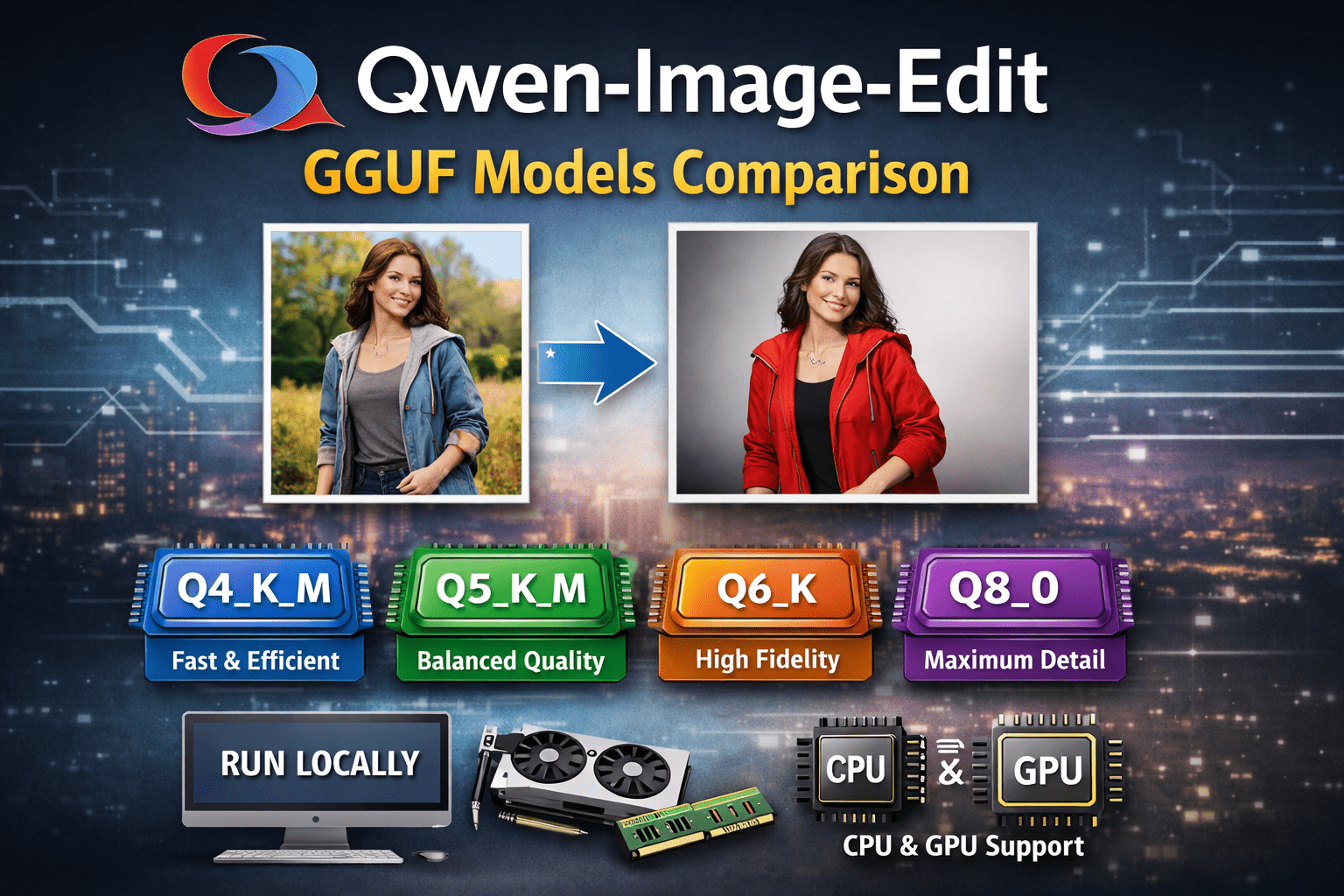
Qwen-Image-Edit GGUF Models Comparison: Full Guide, Performance, and How to Use Them Locally
Image editing with large multimodal models is moving fast, and Qwen-Image-Edit GGUF models are quickly becoming a favorite for people who want powerful AI image editing running locally. If you are experimenting with AI art, building creative tools, or running private workflows without cloud APIs, these models are worth serious attention.
This guide covers what Qwen-Image-Edit GGUF models are, a detailed comparison of quantization variants, performance trade-offs, hardware requirements, and step-by-step instructions to run them locally using llama.cpp-based tools.
What Is Qwen-Image-Edit?
Qwen-Image-Edit is part of Alibaba’s Qwen multimodal model family. Unlike text-only models, it understands both images and instructions. You can:
Edit existing images with natural language
Add, remove, or modify objects
Change styles, lighting, or backgrounds
Preserve structure while applying precise edits
It behaves more like an image editor than a pure image generator.
Why GGUF Format Matters
GGUF is the modern quantized format used by llama.cpp and compatible runtimes. Compared to older formats, GGUF offers:
Faster load times
Better memory mapping
Cleaner metadata handling
Strong support for CPU and GPU offloading
For local image editing models, GGUF is critical because it allows large multimodal models to run on consumer hardware.
Available Qwen-Image-Edit GGUF Variants
Most Qwen-Image-Edit GGUF releases come in multiple quantization levels, each targeting different hardware and performance needs.
Common Quantization Types
| Quant | Size | Quality | Speed | Best For |
|---|---|---|---|---|
| Q2_K | Very small | Low | Very fast | Testing only |
| Q4_K_M | Medium | Good | Fast | Most users |
| Q5_K_M | Larger | Very good | Medium | Balanced quality |
| Q6_K | Large | High | Slower | Power users |
| Q8_0 | Very large | Near-FP16 | Slow | Maximum fidelity |
Detailed Comparison of Qwen-Image-Edit GGUF Models
Q4_K_M – Best Overall Choice
Q4_K_M is the sweet spot for most people.
Pros
Runs well on CPUs
Acceptable VRAM usage on GPUs
Strong image editing accuracy
Fast prompt response
Cons
Slight loss in fine detail
Can struggle with very complex edits
Recommended for
Laptops and desktops
First-time local AI users
Real-time image editing workflows
Q5_K_M – Best Balance of Quality and Performance
This version improves detail retention without becoming too heavy.
Pros
Sharper edits than Q4
Better object boundaries
Improved style consistency
Cons
Higher memory usage
Slower inference
Recommended for
Desktop GPUs with 8–12 GB VRAM
Creative professionals
Batch image editing
Q6_K – High Quality Local Editing
Q6_K is where the model starts to feel close to full precision.
Pros
Strong prompt adherence
Cleaner textures
More stable color blending
Cons
Heavy on RAM and VRAM
Slower generation
Recommended for
High-end GPUs
Studio-quality work
Offline professional pipelines
Q8_0 – Maximum Fidelity
This is the closest to the original unquantized model.
Pros
Best visual quality
Most accurate edits
Minimal artifacts
Cons
Very large file size
Requires powerful hardware
Recommended for
Workstations
Research and evaluation
No-compromise quality needs
Hardware Requirements (Realistic Expectations)
| Model | Minimum RAM | Recommended GPU |
|---|---|---|
| Q4_K_M | 16 GB | Optional |
| Q5_K_M | 24 GB | 8 GB VRAM |
| Q6_K | 32 GB | 12 GB VRAM |
| Q8_0 | 48+ GB | 16–24 GB VRAM |
CPU-only runs are possible but slower. GPU offloading makes a big difference.
How to Use Qwen-Image-Edit GGUF Locally
Step 1: Install a Compatible Runtime
You need a runtime that supports multimodal GGUF models.
Popular options:
llama.cpp (latest build)
LM Studio
text-generation-webui with multimodal support
Make sure image input is enabled.
Step 2: Download the Model
Choose the quantization based on your system.
Example:
Start with Q4_K_M
Upgrade later if you want better quality
Place the .gguf file in your models directory.
Step 3: Load the Model
When loading:
Enable GPU layers if available
Allocate enough context size
Ensure image input is active
For llama.cpp, this often means enabling vision flags at runtime.
Step 4: Provide Image and Prompt
You typically supply:
An input image
A natural language instruction
Example prompts:
“Remove the background and replace it with a studio backdrop.”
“Change the sky to sunset while keeping lighting realistic.”
“Add a red jacket to the person without altering pose.”
Clear instructions produce better edits.
Step 5: Refine and Iterate
Image editing works best in iterations.
Start simple
Add constraints
Avoid overly long prompts
Prompting Tips for Best Results
Be specific about what should not change
Mention lighting, shadows, and realism
Avoid stacking too many edits in one prompt
Use directional language like “only”, “keep”, “do not modify”
Qwen-Image-Edit vs Other Image Editing Models
Strengths
Strong instruction following
Preserves structure better than diffusion edits
Works well in local environments
Limitations
Slower than cloud APIs
Requires tuning for best results
Hardware dependent
Best Use Cases
Private image editing
AI photo retouching
Creative design prototyping
Research and experimentation
Offline content production
Final Verdict
If you want serious image editing power without relying on cloud services, Qwen-Image-Edit GGUF models are among the best options available today.
Quick recommendations
Start with Q4_K_M
Upgrade to Q5_K_M if you want better detail
Use Q6_K or Q8_0 only if your hardware can handle it
They are flexible, powerful, and surprisingly practical for local workflows.